
Student Icon
Find out how to log in to Student ICON, manage your account, and back up your data before leaving school.
Student ICON
Visit Student ICON login (opens in new tab) page.
Login Instructions
Student ICON login details have been given to students.
With effect from 7 Apr 2025, Student ICON adopted MIMS as an authentication system.
Student ICON adopted MIMS as an authentication system. With the onboarding of ICON to MIMS, students will be able to enjoy the convenience of logging into ICON with the same MIMS login ID and password.
Set-up of MIMS challenge questions
Students, you should have completed the set-up of MIMS challenge questions.
By set-up of MIMS challenge questions, you will be enabled to perform self-service password.
Visit Student (Self-help) MIMS account password reset portal (opens in new tab) to setup of MIMS challenge questions, to perform self-service password.
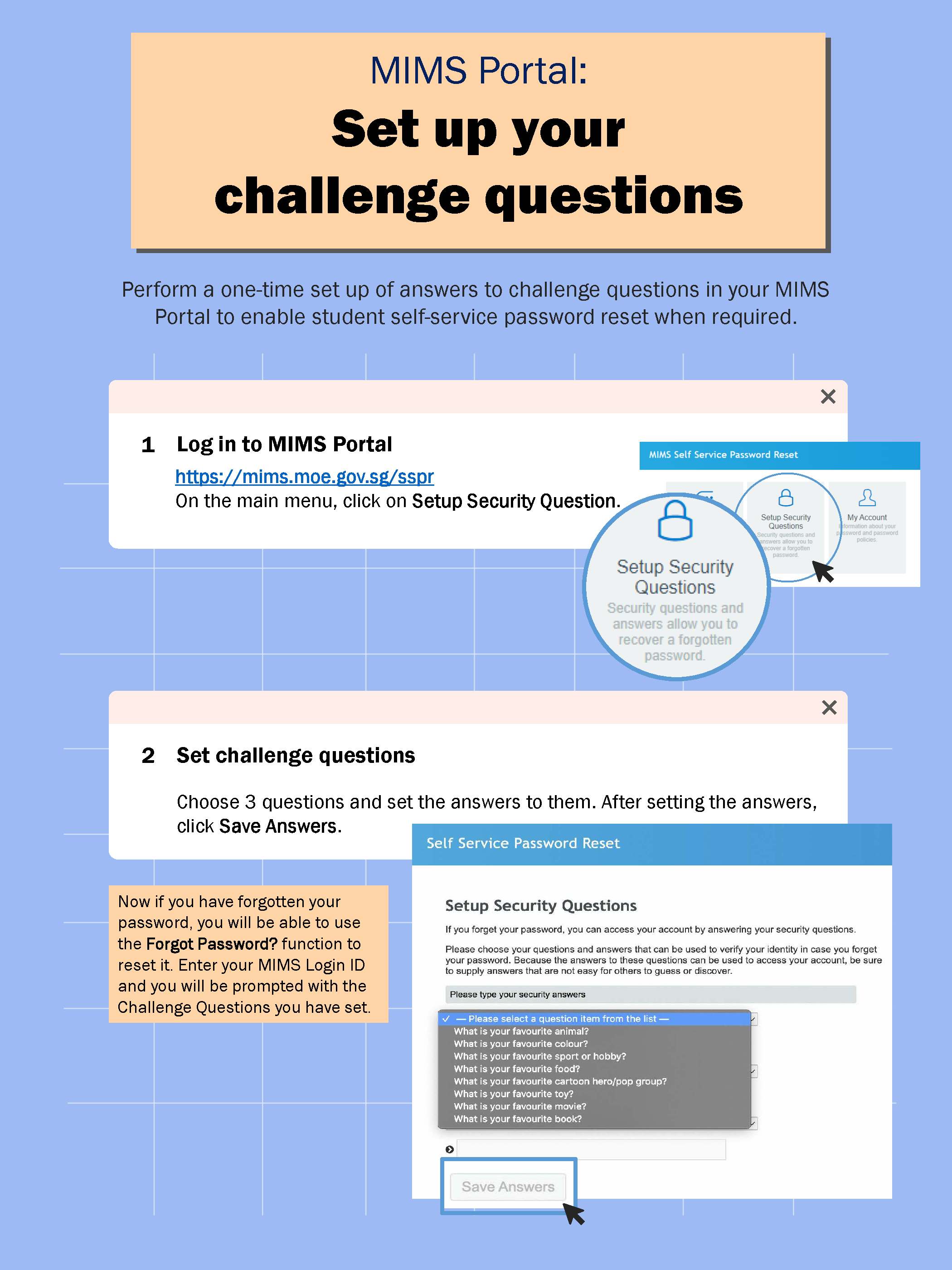
Step-by-step guide for setting up challenge questions on the MIMS Portal for password reset.
View a larger version of step-by-step guide (PNG, 449KB) (opens in new tab) for setting up challenge questions on the MIMS Portal for password reset.
Student Self-Service Password Reset Guide
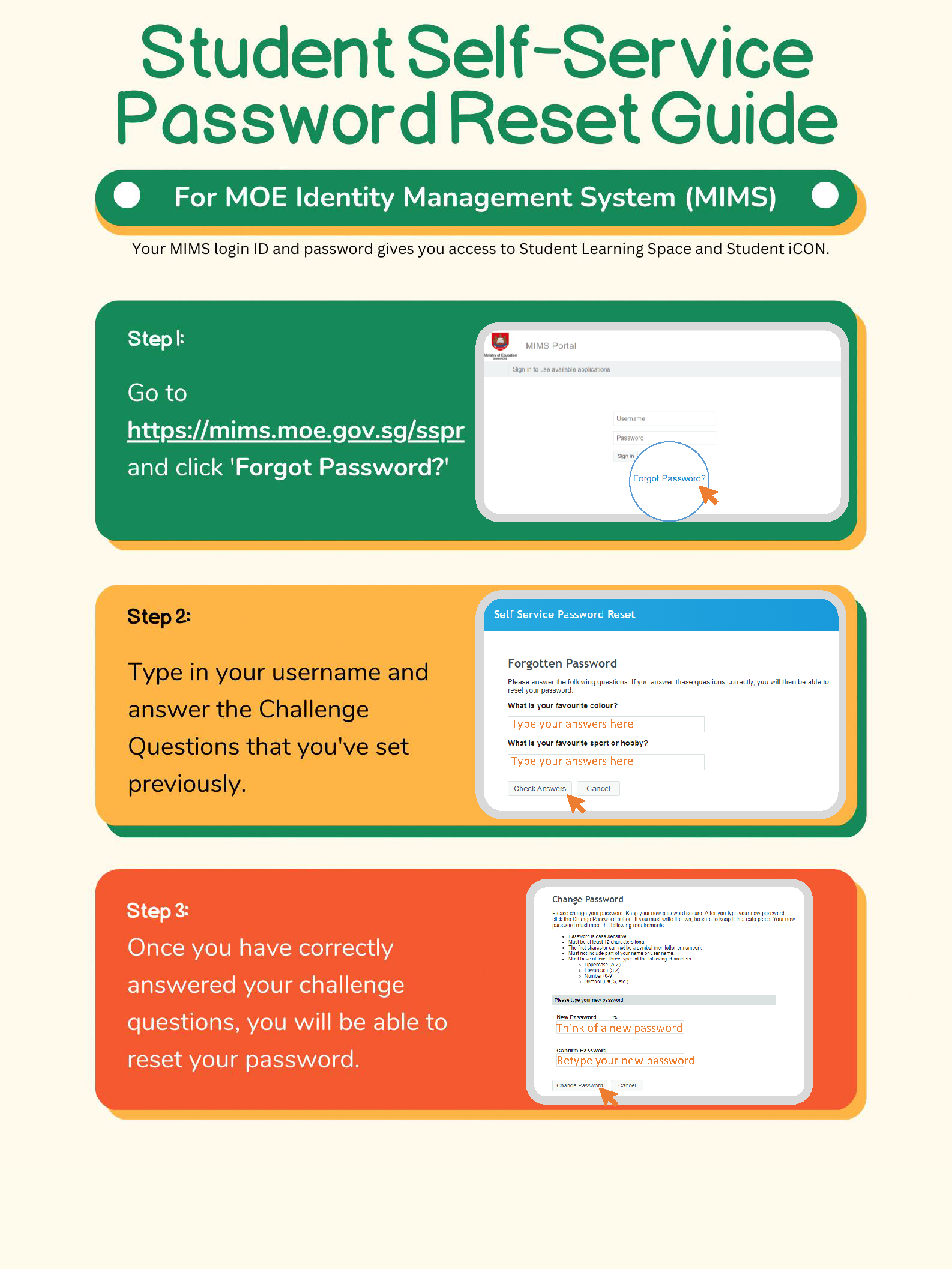
Three-step guide for resetting a student MIMS password, showing login, challenge questions, and new password screens.
View the larger version of three-step guide (PNG, 910KB) (opens in new tab) for resetting a student MIMS password, showing login, challenge questions, and new password screens.
Student ICON email address
For the ICON email address, please take note the following:
Any space in the full name will be replaced with an underscore.
Should the student’s full name have words such as “Bte”, “d/o” and “s/o”, they will not appear in the email address. (eg, Abdullah Bte Mohmand => abdullah_mohmand@students.edu.sg)
For cases where students share the same full name, a numerical number (e.g. Ang_Bee_Bee_1, Ang_Bee_Bee_2) to differentiate their email addresses.
Take note of the correct domain is studentS .edu .sg not
student.edu .sg.
Here’s an example of the slip:
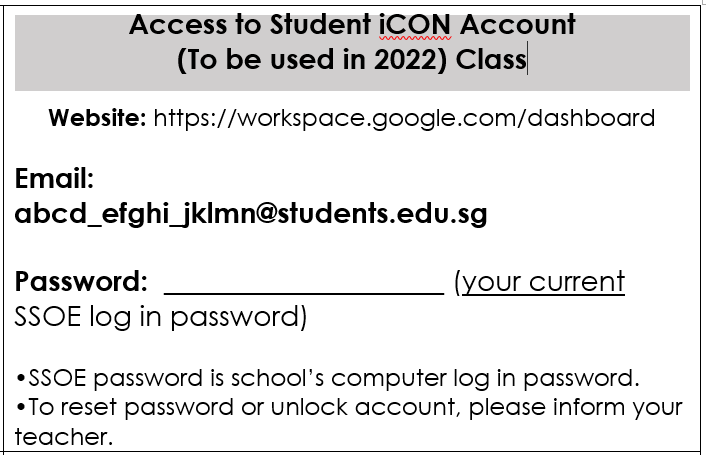
For more instructions on Student ICON Onboarding (PDF, 327KB) (opens in new tab).
For more instructions on Google Classroom (PDF, 498KB) (opens in new tab).
Password Requirements & Policy
Student ICON is primarily used to log on to the computers in school. Please approach your form teacher if you need your account to be unlocked.
Password Requirements
With effect from 25 Feb 2025, 1pm. Do take note of the password policy below:
Password Policy
All new passwords must meet the following criteria:
Case sensitivity
Minimum length of 8 characters
First character must be a letter or number (not a symbol)
Must not include any part of the student's name or username
Must include at least 2 of the following:
Uppercase letters (A-Z)
Lowercase letters (a-z)
Numbers (0-9)
Symbols(!, #, $, etc)
Student ICON backup
From Jun 2024, Student ICON will have a storage limit of 1 GB for each student.
View the guide on how to Backup Student ICON data to your device (PDF, 494KB) (opens in new tab)
(who don’t have a personal Gmail account)